Below Boil

See what is slowing your Mac.

A menu bar health check for a Mac under heavy load (AI agents, Chrome, music and design apps). It tells you in plain words whether your Mac is fine, whether it can take more, and which app is weighing it down.

Free invite-only beta for Apple Silicon Macs with macOS 14 or later.

A sample afternoon

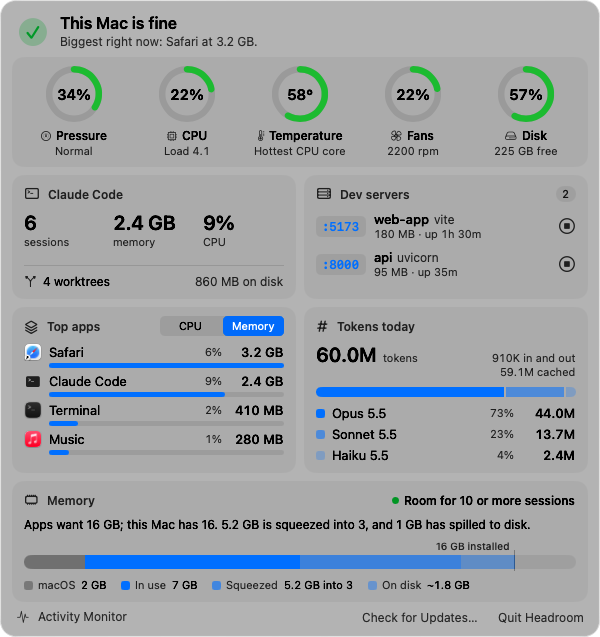
This Mac is fine

Below Boil sits in the menu bar. Click its gauge for the panel: what the Mac is doing, and which app is behind it.

    From last week

    Planned, sample text
    • Memory was tight 5 times last week, and Chrome held over 6 GB each time. Closing the tabs you had not opened that day would have kept it fine.
    • Yesterday from 2 to 4 pm memory went from tight to slow while Docker and Xcode ran together. Quit Docker when you are not testing: it holds about 4 GB.
    • Three Claude Code sessions sat idle overnight and held 2.1 GB. Close the ones you have finished before you start new ones.
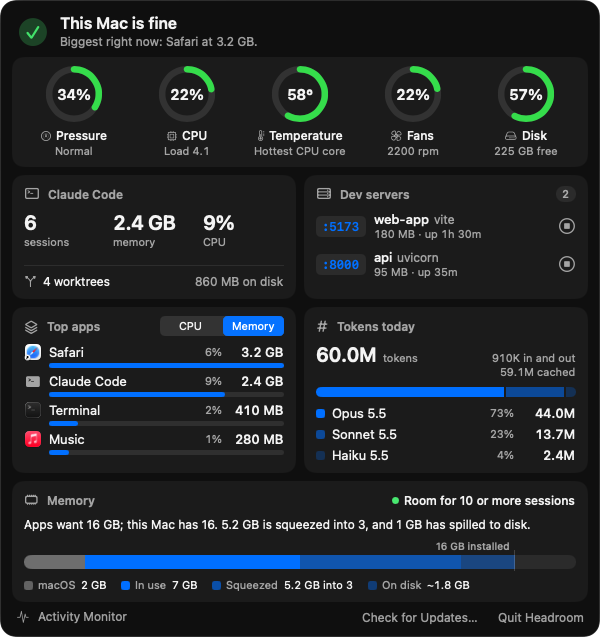
    The Below Boil panel: a line saying the Mac is fine and naming the biggest app, gauges for memory pressure, CPU, temperature, fans and disk, then cards for top apps, memory demand and developer details. The same panel in light mode.
    The panel with sample data. It pauses while you point at it: sort the apps, or open Tokens today for the history.

    Request access

    The beta is open to a small group while we find what breaks. Leave your email and we will send you a download link. Telling us about your Mac helps us pick testers, but it is up to you.

    We only use your email to send you the beta and to reply about it.

    For Macs that do a lot at once.

    If you keep heavy apps open side by side, your Mac can slow down without saying why. Below Boil keeps the answer one click away in the menu bar.

    Video, audio and 3D

    Resolve, Premiere, Logic, Ableton or Blender next to everything else you have open. See whether a stutter comes from memory running out, the CPU maxing out or the Mac running hot, and which app is behind it.

    Design and AI apps

    Figma, Adobe apps, ChatGPT, Claude and a browser full of tabs. Below Boil counts each app's helper processes under the app itself, so Chrome shows up as one line with its real total.

    Local AI models

    Models take a lot of memory at once. See what your apps want against the memory your Mac has, including what macOS has compressed or moved to disk, before you load one more.

    Coding with AI agents

    Running Claude Code or Codex in a few terminals? Below Boil lists each agent's sessions, memory and CPU, with every model's tokens today right next to it. It also shows Claude Code's worktrees, local dev servers with a stop button, and how many more sessions fit.

    What it shows.

    Click the gauge icon in the menu bar for the panel. The icon itself turns orange, then red, as memory runs short.

    A one-line answer

    Whether your Mac is fine, under strain or struggling. When something is wrong it says what, for example that memory is exhausted or the Mac is running very hot, and names the app behind it.

    The apps using the most

    The four apps using the most memory or CPU, with the one causing trouble flagged.

    Memory your apps want

    What your apps are asking for against the memory you have, counting data macOS has compressed or moved to disk at its full size. When the bar runs past the line, your apps want more memory than the Mac has.

    Gauges

    Memory pressure, CPU, temperature, fans and free disk, coloured green, orange or red.

    For developers

    One line per AI agent that is running or used today: Claude Code, Codex, Cursor and ChatGPT, with sessions, memory and CPU. Next to it, tokens today from Claude Code and Codex together, split by model, with 30 days of history in one chart. Agents you have but aren't using fold into one quiet line. Below that: the git worktrees Claude Code created, and local dev servers by port and project folder (click to open, or stop one).

    What it reads, and what leaves your Mac.

    Everything Below Boil shows is worked out on your Mac. It does not send any of it anywhere.

    System numbers

    Memory, CPU, swap and disk from macOS. Temperature and fan speed from the Mac's sensor controller, which it only reads. Its list of running processes, to find the top apps, AI agent sessions and dev servers. To list agents you have but aren't using, it checks that ~/.claude/projects and ~/.codex/sessions exist and that Cursor or ChatGPT is in Applications. These checks open nothing.

    Claude Code files

    Today's transcript files in ~/.claude/projects, to count tokens. It keeps only the token counts, model and time of each reply, never the text. It also lists the folders in ~/.claude/worktrees and ~/code/*/.claude/worktrees to count worktrees and their size.

    Codex files

    Session files from the last 30 days in ~/.codex/sessions, to count tokens. It keeps only the token counts, model and time, never the text, and only in memory. It never opens anything else in ~/.codex, such as your login. Cursor and ChatGPT keep usage on their own servers, so Below Boil shows their memory and CPU only.

    Stopping a server

    The stop button asks first, then sends the polite quit signal to that one process. Below Boil checks the process is yours and is still the same one before it does.

    The update check

    The only network request Below Boil makes. Once a day, and when you click Check for Updates, it downloads a small file from belowboil.com that lists the latest version (versions up to 0.1.8 check sedgelabs.dev instead). The request carries the app's name and version and your preferred language, and our host sees your IP address, as with any download. Nothing about your Mac or your work is sent, and there are no analytics.

    Install.

    This beta is not signed by Apple yet. The Terminal install below skips the block macOS puts on browser downloads. If you download the zip in a browser instead, you approve it once in System Settings.

    Install with Terminal

    Open Terminal, paste this line and press Return. It downloads the newest Below Boil, puts it in your Applications folder and opens it. It does not ask for your password.

    curl -fsSL https://belowboil.com/install.sh | bash

    It needs Apple Silicon and macOS 14 or later, and stops with a message if your Mac does not qualify. You can read the script first.

    Or download the zip

    1. Download and unzip

      Open the download link in your invite email, then double-click BelowBoil.zip in your Downloads folder.

    2. Move it to Applications

      Drag Below Boil.app into your Applications folder before you open it. Opened straight from Downloads, macOS runs a temporary copy that updates cannot replace.

    3. Open it once

      Double-click Below Boil. macOS says it could not verify the app. Click Done.

    4. Allow it

      Open System Settings, then Privacy & Security. Under Security it says Below Boil was blocked. Click Open Anyway, enter your Mac password, and click Open Anyway again.

      Apple shows that button for about an hour after your first try. If it is gone, try opening Below Boil again. Then the gauge icon appears in the menu bar.

    Updates, quitting and uninstalling.

    Updates

    Below Boil checks for a new version once a day. When there is one, it shows what changed and asks before installing. You can also click Check for Updates at the bottom of the panel.

    Updates install and relaunch without the System Settings step. Every update is signed, and Below Boil refuses one whose signature does not match.

    Quit and uninstall

    To quit, click Quit Below Boil at the bottom of the panel.

    To uninstall, quit it and move Below Boil.app from Applications to the Trash. To remove its settings and downloaded updates too, delete ~/Library/Preferences/dev.sedgelabs.belowboil.plist and anything named dev.sedgelabs.belowboil in ~/Library/Caches and ~/Library/HTTPStorages, and the folder ~/Library/Application Support/Below Boil, which holds its token history. If you made a config file, it is in ~/.config/belowboil.

    Good to know.

    Temperature

    Sensor names differ between Apple chips. Where Below Boil cannot read them, the temperature gauge shows Cool, Warm or Hot, estimated from what macOS reports, and the fan gauge shows n/a.

    Its own weight

    Measured on a 16 GB M1 Pro: about 2% of one CPU core while the panel is open, and under 0.1% while it is closed.

    Other users' processes

    Below Boil sees only your own processes, so servers started by another user are not listed.

    It is a beta

    Expect rough edges. Tell us what breaks or what you would want it to show.